3.05 Tools Panel:
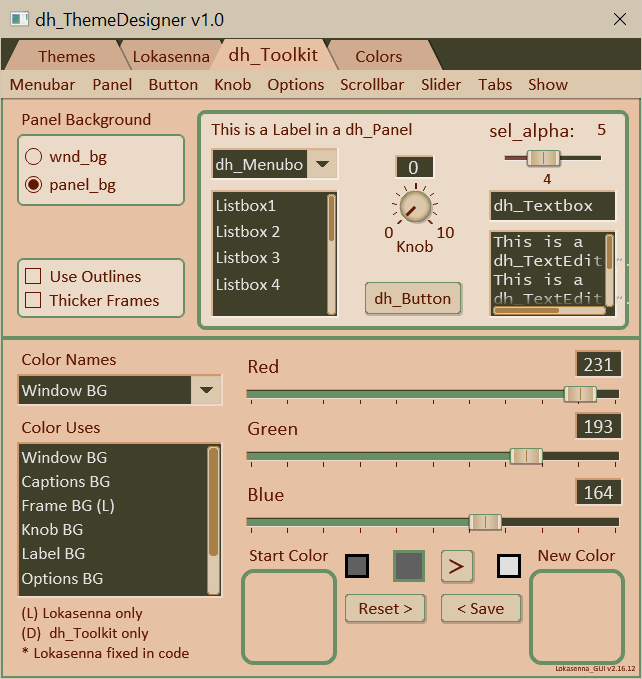
"Color Names"
menubox:
Select a theme color from the selection box.
(You can also select a color from a swatch on the "Colors" tab.)
When selecting a color the "Start Color" and "New Color" swatches
are populated with their current values (see below).
The "Color Uses" listbox is updated showing many of the places
where that particular color is used.
The sliders are also updated to the red, green, and blue values
of the "New Color"
"Color Uses"
listbox:
Displays the various default uses of the selected color name.
Color sliders:
Adjust these to update the "New Color" swatch.
You can drag the slider thumb, click on the track, or use the
mousewheel when the mouse is over the track.
Click on the Slider caption (Red, Green, or Blue) to decrement the value by one.
Click on the value display to increment the value by one.
"Start Color":
Displays the color with the last saved values.
Clicking on the "Start Color" swatch updates all
of the GUI elements, that should be affected, with the "Start Color".
It gets updated when a different theme color is selected.
Note: Clicking on "Start Color" updates the GUI. Therefore, if selecting a different color then reselecting this color, the "New Color" gets the values of "Start Color". Any recent edits to "New Color" will be lost.
Note: Clicking on "Start Color" updates the GUI. Therefore, if selecting a different color then reselecting this color, the "New Color" gets the values of "Start Color". Any recent edits to "New Color" will be lost.
"New Color":
When a theme color is selected this swatch displays the
theme color as is currently being used by the GUI.
This is the color that gets edited.
Clicking on the "New Color" swatch updates all
of the GUI elements, that should be affected, with "New Color".
It gets updated when a different theme color is selected.
Reset Buttons:
If not satified with the edited "New Color" color it can be restored
from the "Start Color" by clicking on the "Reset" button.
When clicking two additional buttons appear.
Click "Y" to copy the "Start Color" to "New Color".
Click "N" to abort.
If you are somewhat satisfied with the edited "New Color" it can be
saved to "Start Color" by clicking the "Save" button.
When clicking two additional buttons appear.
Click "Y" to copy (overwrite) the "New Color" to "Start Color"
Click "N" to abort.
The original start color is no longer available.
Last Selected Indicators:
The color boxes to the upper corners of "Start Color" and "New Color"
when highlighted (white) shows which of the two colors is currently
selected and being used in the GUI.
Hold Color:
The "Hold Color" swatch is located just above the "Reset" button.
This is used to transfer colors.
Clicking on the "Hold Color" swatch copies either the "Start Color" or "New Color"
into it, whichever was last selected.
It can also be populated by right-clicking on a color swatch
on the "Colors" tab.
It will hold that color until it is repopulated by one of the above methods.
Now if you select another theme color from the "Colors" tab
or the "Color Names" menubox the "New Color" box gets
the newly selected theme color, but the "Hold Color" is still there.
Clicking on the arrow button to the right of the "Hold Color"
swatch will copy the hold color into the "New Color".